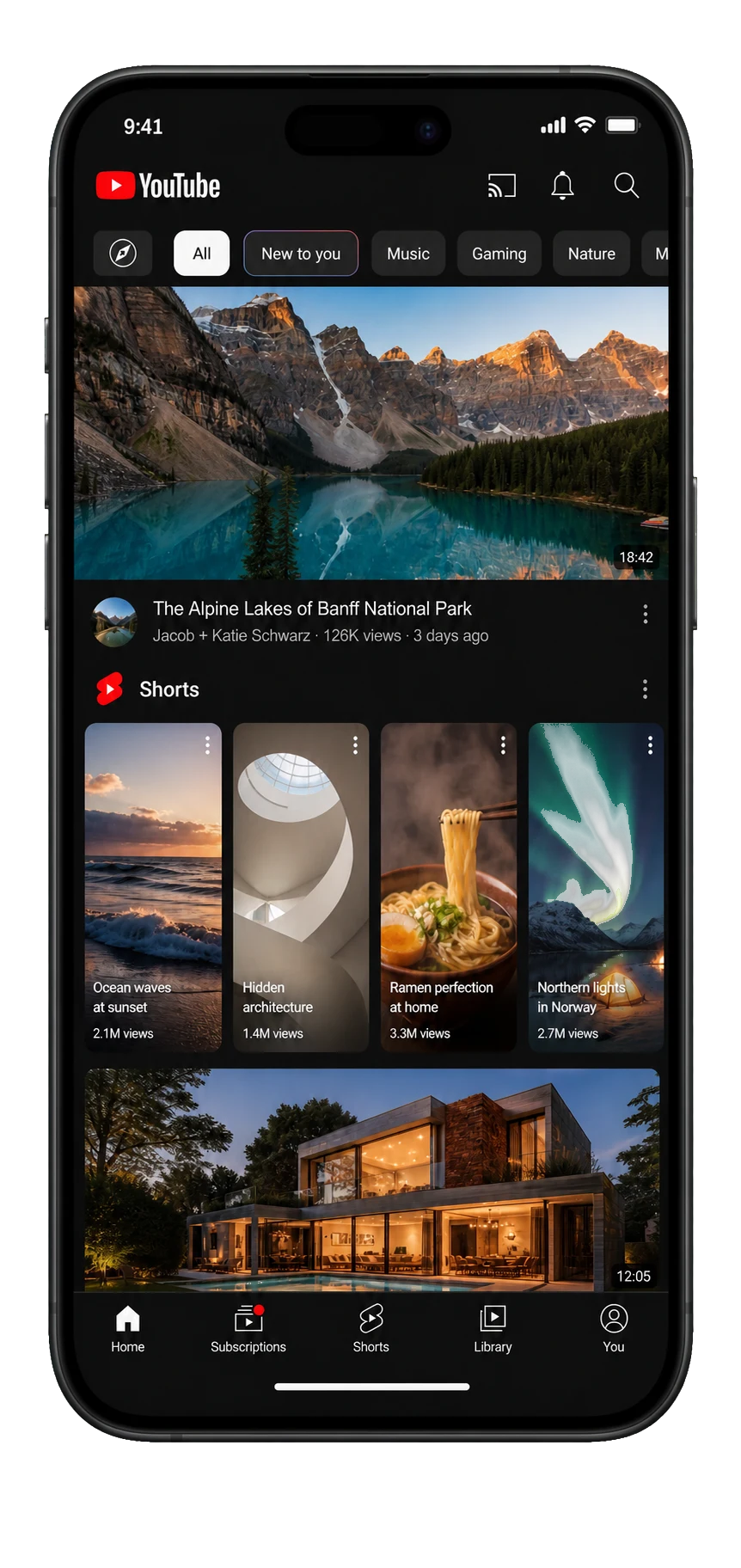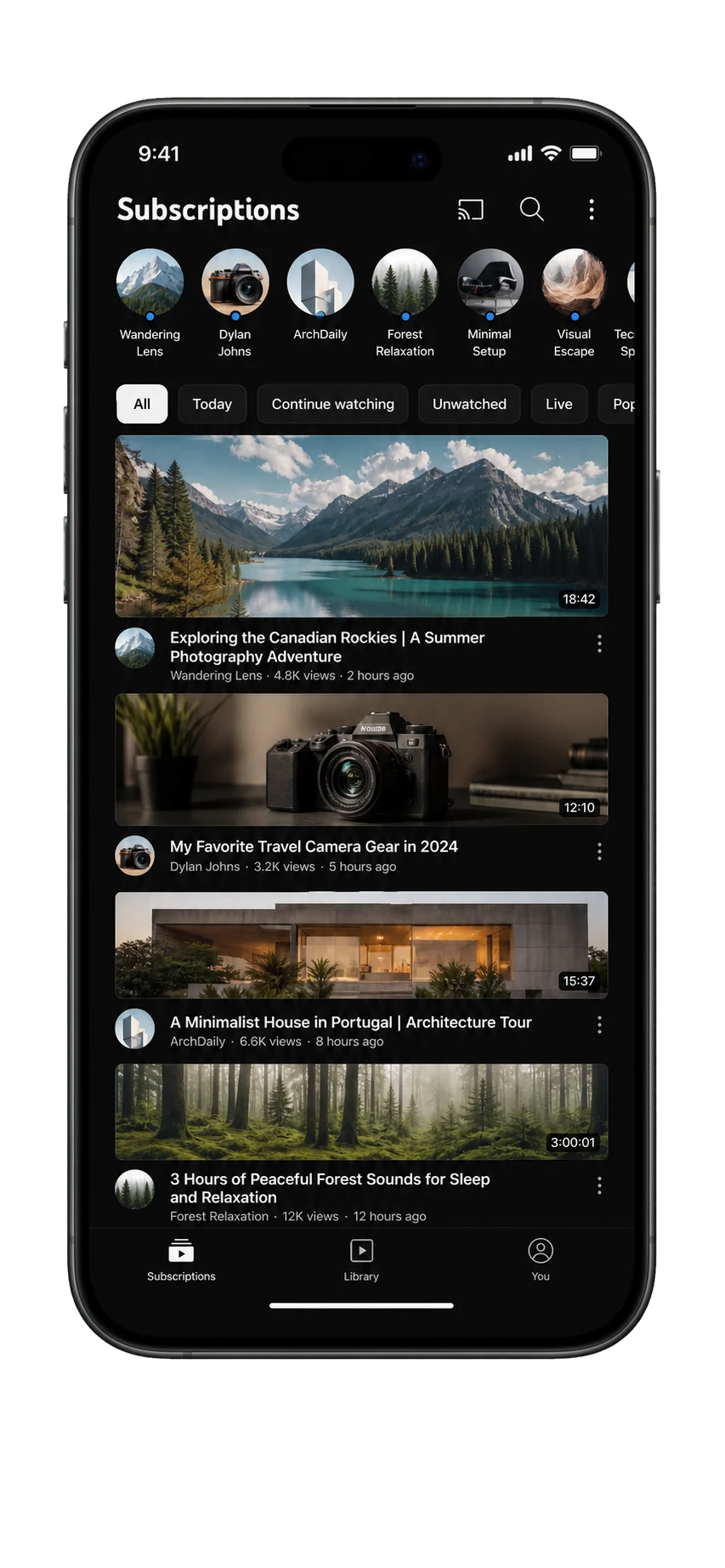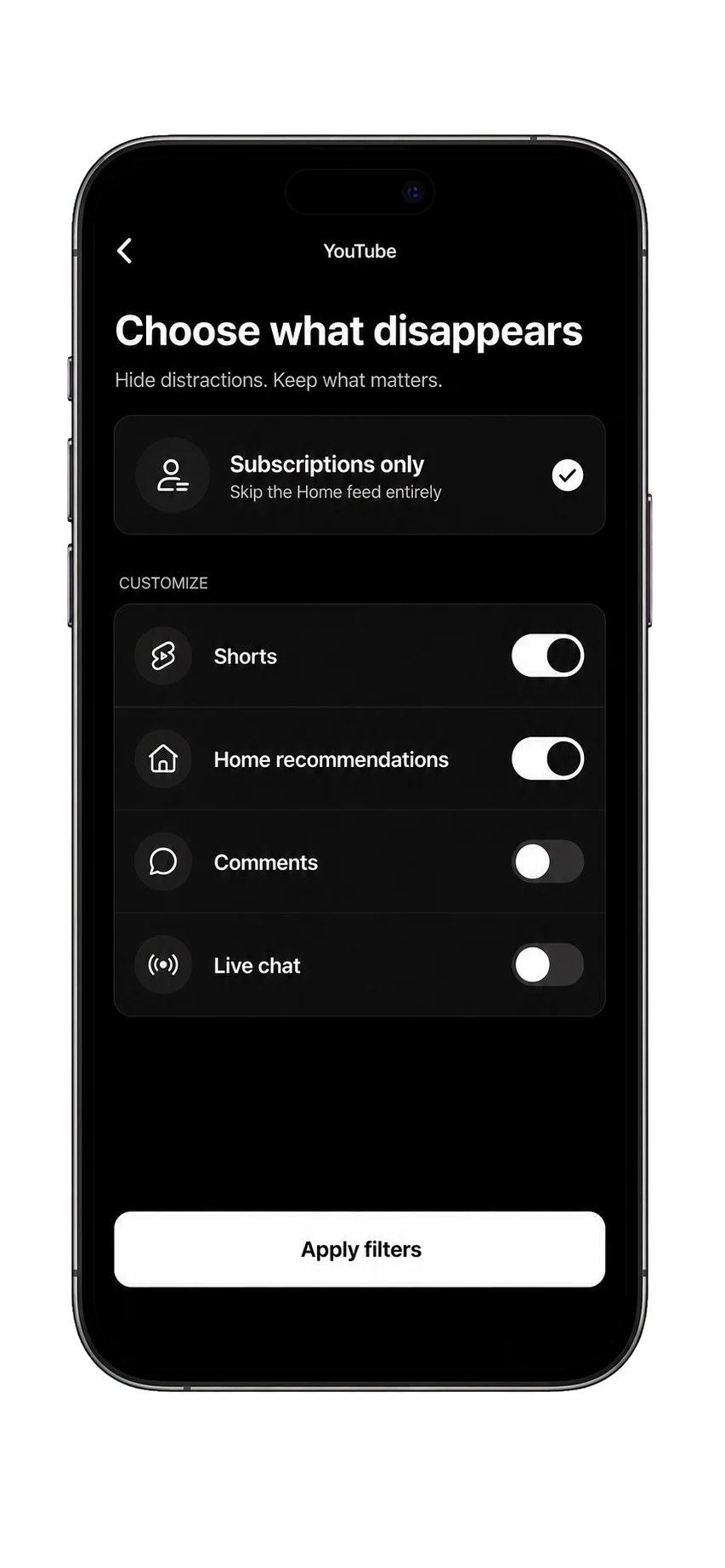
Quick answer: Use Monk Mode to block YouTube immediately, schedule hours when it stays closed, cap daily time, or limit repeated openings. These rules can protect you from Shorts by blocking YouTube access under the boundary you choose. Shorts-only blocking depends on the current iOS, YouTube, and Monk Mode versions, so verify any selective option in the app.
Four YouTube boundaries at a glance
| Option | Best when | What it controls |
|---|---|---|
| Monk Mode | You want immediate blocks, opening limits, schedules, or daily allowances in one workflow. | YouTube access under the rule you create; selective Shorts controls depend on current availability. |
| Screen Time App Limit | You want only a basic built-in daily allowance. | The YouTube app after the selected daily time, subject to settings you control. |
| Downtime | You want only a basic built-in schedule. | The whole app during a scheduled window when configured to block access. |
| Apple Focus | Notifications start the detour. | Notification delivery, not app access or Shorts. |
Match YouTube with a Monk Mode rule
Use an immediate block for a focus session that starts now, a schedule for work or bedtime, a daily limit for a defined allowance, or an opening limit when the real problem is checking YouTube repeatedly. Monk Mode keeps those boundaries and activity patterns in one iPhone workflow.
If you still need YouTube search, subscriptions, or saved videos, choose the narrowest whole-app window that protects the trigger time. Then check the current app for any supported selective controls.
Use Screen Time for a basic daily allowance
Apple’s App Limits can give YouTube a daily allowance. This is a basic built-in alternative when total minutes are the only behavior you need to control. It does not isolate Shorts from subscriptions, search, saved videos, or the rest of YouTube.
Schedule hours without YouTube
Apple Downtime is a basic built-in alternative when your rule is tied to predictable hours. Review Always Allowed so calls, messages, maps, authentication, and other essential tools remain available.
Why Shorts-only blocking is harder
Apple’s published Screen Time controls describe limits for apps and categories. Shorts is a surface inside a third-party app, and YouTube can change that surface without notice. That means a selective control must be checked against the exact iOS version, YouTube version, and blocker feature available on your device.
Common questions
Can iPhone block only YouTube Shorts?
Apple Screen Time applies App Limits and Downtime to apps or categories, not to a guaranteed Shorts-only surface inside YouTube. Selective controls depend on the current iOS version, YouTube behavior, and the capabilities of the blocker you use.
Does Apple Focus block YouTube Shorts?
No. Focus can silence YouTube notifications, but it does not prevent YouTube or Shorts from opening. Use a Monk Mode immediate block, schedule, daily limit, or opening limit when app access is the problem.
Can I limit YouTube without deleting it?
Yes. Monk Mode can give YouTube a daily allowance, scheduled unavailable hours, an immediate block, or an opening limit without requiring you to delete the app.
Primary sources and maintained product references
YouTube and Shorts are trademarks of their respective owner; this page is not affiliated with or endorsed by YouTube. Apple feature descriptions were checked against the linked Apple iPhone guides. Last materially reviewed July 28, 2026.